
How To Use Our Free Bybit Crypto Trading Signals!
What’s up everybody?
In this post I’m going to show you exactly how use our Free Bybit Live Crypto Trading Signals services.
When you visit our Live Crypto Hunters blog posts, you will see various types of live Crypto trading tips that can potentially make you more Money real fast.
And the most important of all is our Free Bybit Live Crypto Trading Signal daily blog posts.
But you have to be ready to take a couple of actions as listed below:
Action #1: Go to Tradingview dot com and download the free Tradingview Desktop software or Android app. Install and Switch the candlesticks price chart data time frame to the 4hrs time frame.
Action #2: Immediately we post a Free BYBIT Live Crypto Trading Signals in the blog section of our website, you will also be notified via your Email address.
Now make sure to transfer those price data indicating your Stop-Loss, Entry, Safety and Take-Profit Prices into the Tradingview chart page of that particular Cryptocurrency Asset.
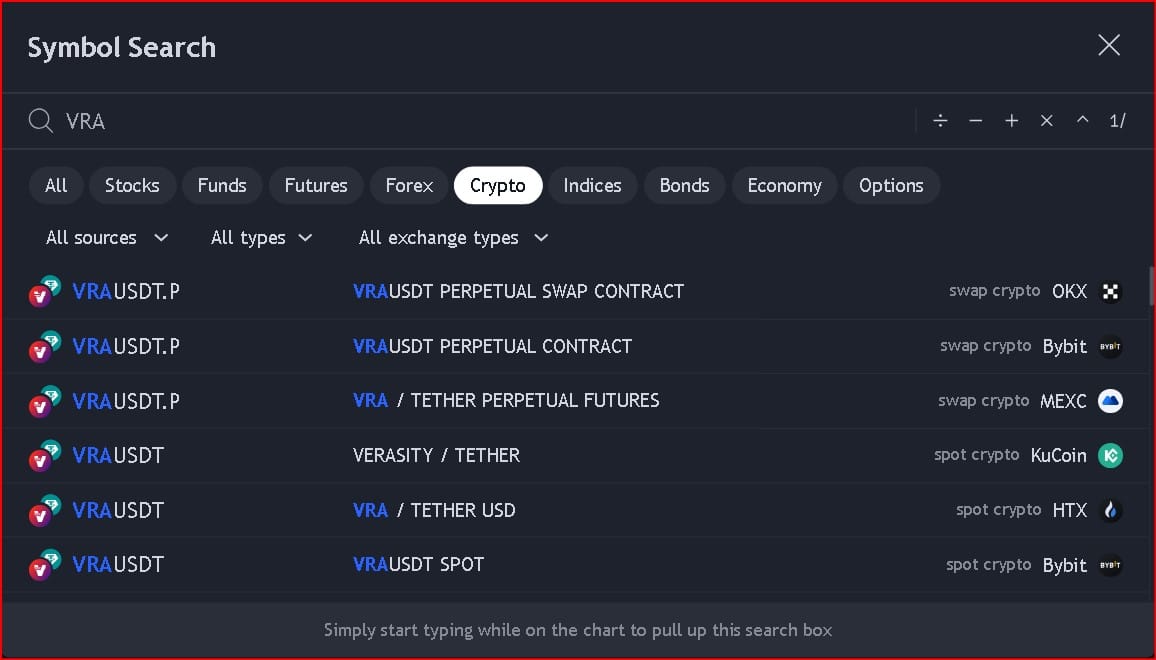
So open your Tradingview Desktop app, click on the search Ticker bar, and type in the Crypto ticker symbol from our blog post and select the BYBIT Cryptocurrency Exchange.
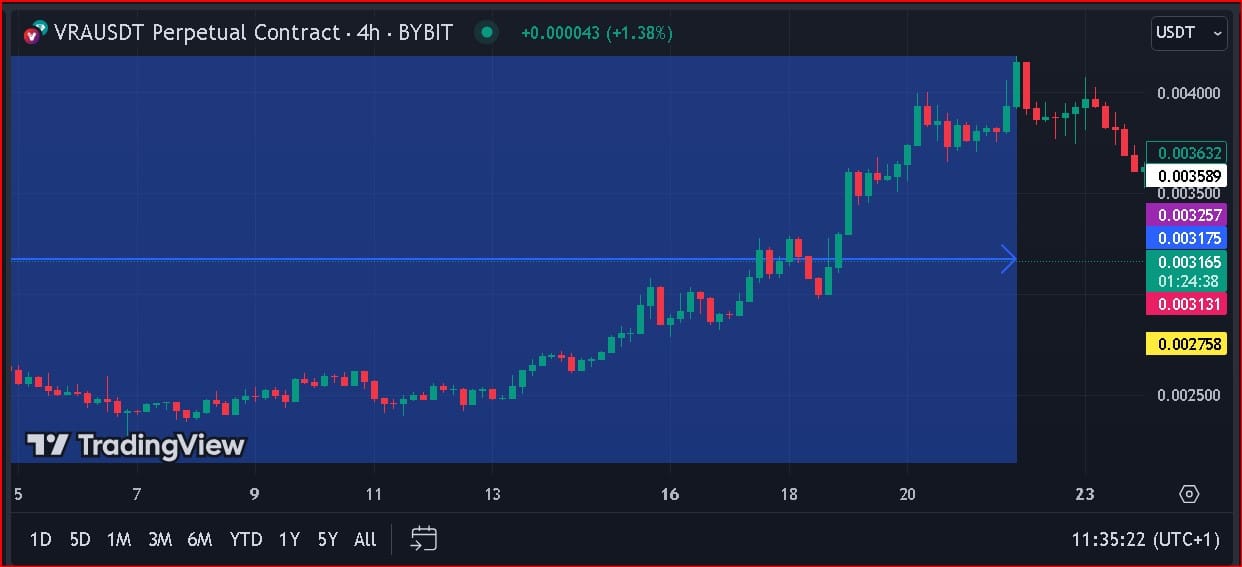
And that will automatically open the candlesticks price chart data of the of the Crypto Ticker Symbol.
You can now change the candlesticks time frame to the 4 hours candlesticks time frame.
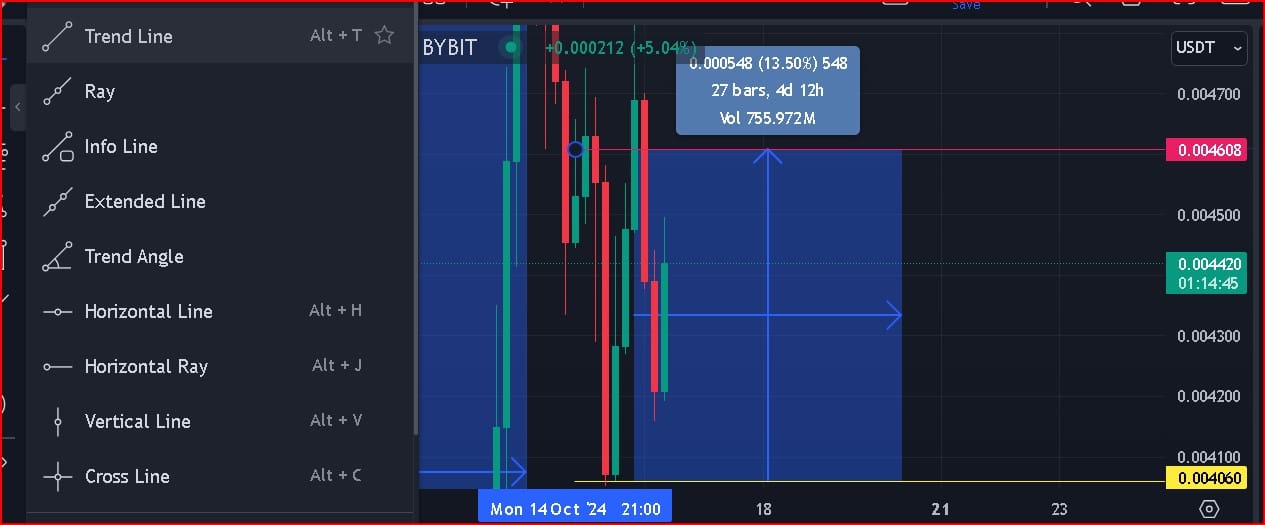
Next, click on the Trend Line Tools and select the Horizontal Ray Tool, drag the line to the exact Stop-Loss Price of the Crypto trading signal and then change the colour to Red.
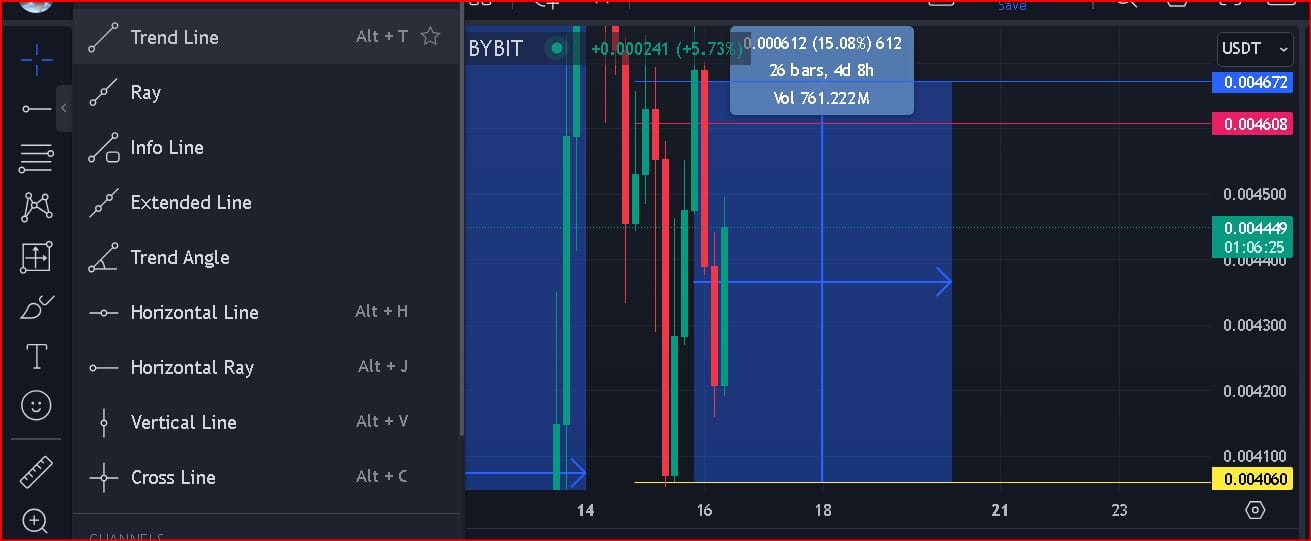
Now click on the Trend Line Tools again and select the Horizontal Ray Tool, drag the line to the exact Entry Price of the Crypto trading signal and then change the colour to Blue.
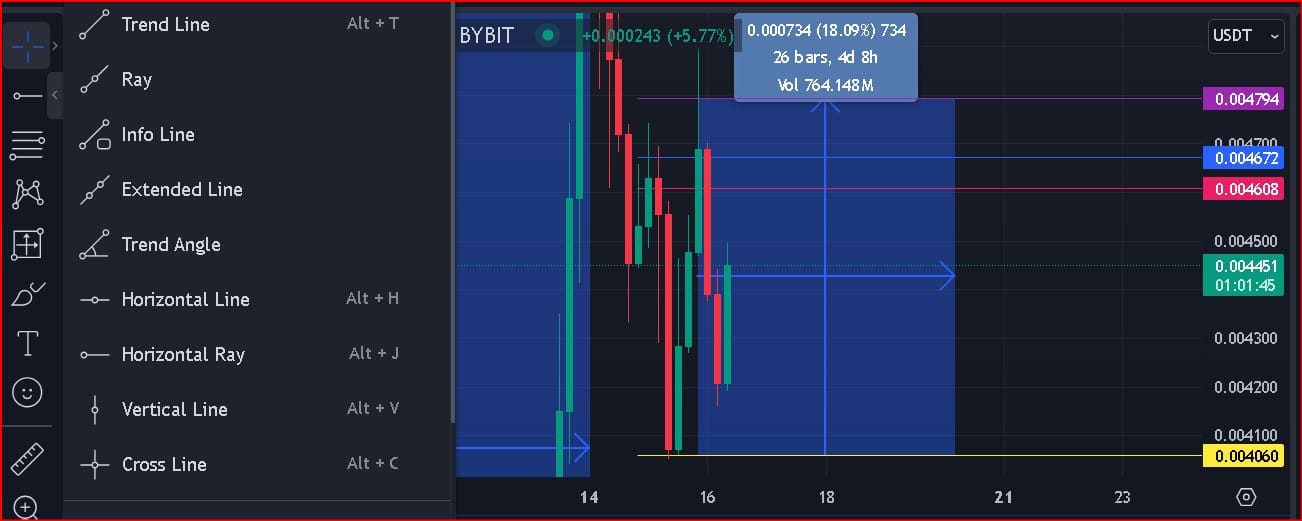
Click on the Trend Line Tools again and select the Horizontal Ray Tool, drag the line to the exact Safety Price of the Crypto trading signal and then change the colour to pink.
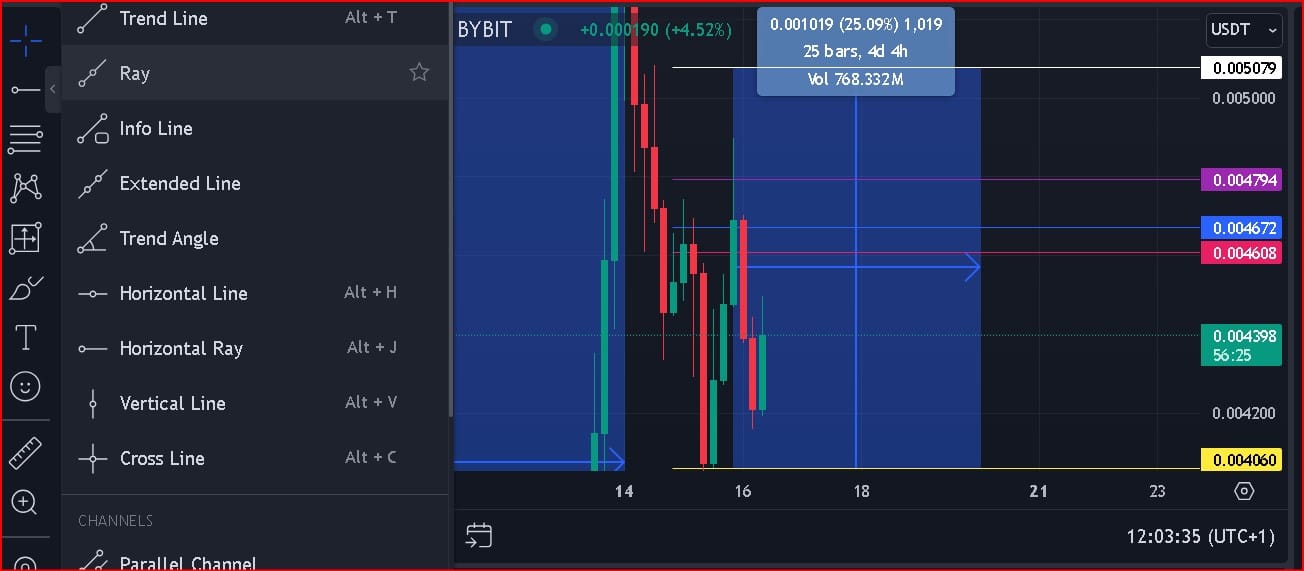
And finally, click on the Trend Line Tools again and select the Horizontal Ray Tool, drag the line to the exact Take-Profit Price of the Crypto trading signal and then change the colour to White.
Once you’ve created your trade Entry, Stop-Loss, Safety and Take-Profit prices on the candlesticks price chart data of your Tradingview android app, Make sure the entry conditions are met before you can go open a Short or Long trade position via the BYBIT Order Form.
Action #3: Open your BYBIT app, click on the Derivatives link and then click on the Trade Tab, search for the Crypto Ticker Symbol indicated in your Crypto trading signal.
Next, Make sure your Margin Mode is set to Isolated and your Leverage is set to 10x Max.
Now click on the Order Form options and select the Conditional Order Form option.
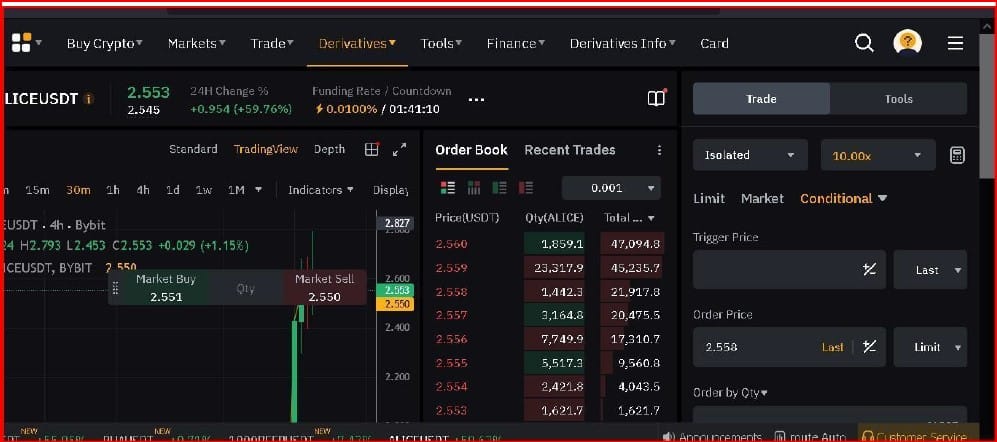
Next, enter your Entry Price on the Trigger price bar and select Last!
Next, Enter you’re the same Entry Price again on the Order Price bar and select Limit!
Next, on the Order Value bar, enter the amount of USDT capital you intend to use for the trade.
For example; if you want to trade with a $50 worth of Crypto trading capital on a 10x leverage, you will have to enter a $500 on the Order Value bar.
So once you’ve entered your Entry Price and the Order Value, move over to the next step.
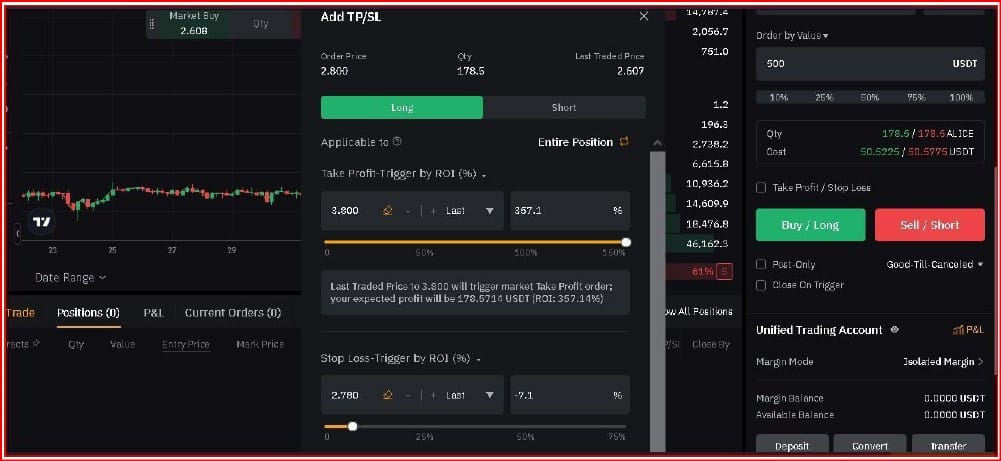
Next, click on the + TP/SL link!
Enter your Take-Profit Price on the Take Profit Trigger by ROI bar.
And then enter your Stop-Loss Price on the Stop Loss Trigger by ROI bar.
And then click on the confirm button to confirm you are actually placing the order.
Finally, click on the Buy/Long or Sell/Shortbutton to open a live trade.
And once your opened trade is completely filled in the Order Book, it will be automatically transferred to Order Book again to close the Order at the specified Take-Profit or Stop-Loss Price.
And just like that, you’ve completely executed your Cryptocurrency Derivatives trade using our Free BYBIT Live Crypto Trading Signal.
Our Crypto Hunters are always available online to chat and support you in every step of your Crypto trading journey.